
How to Edit Photos Like a Pro on Your Phone
Sep 1, 2025 · By Ege Uysal
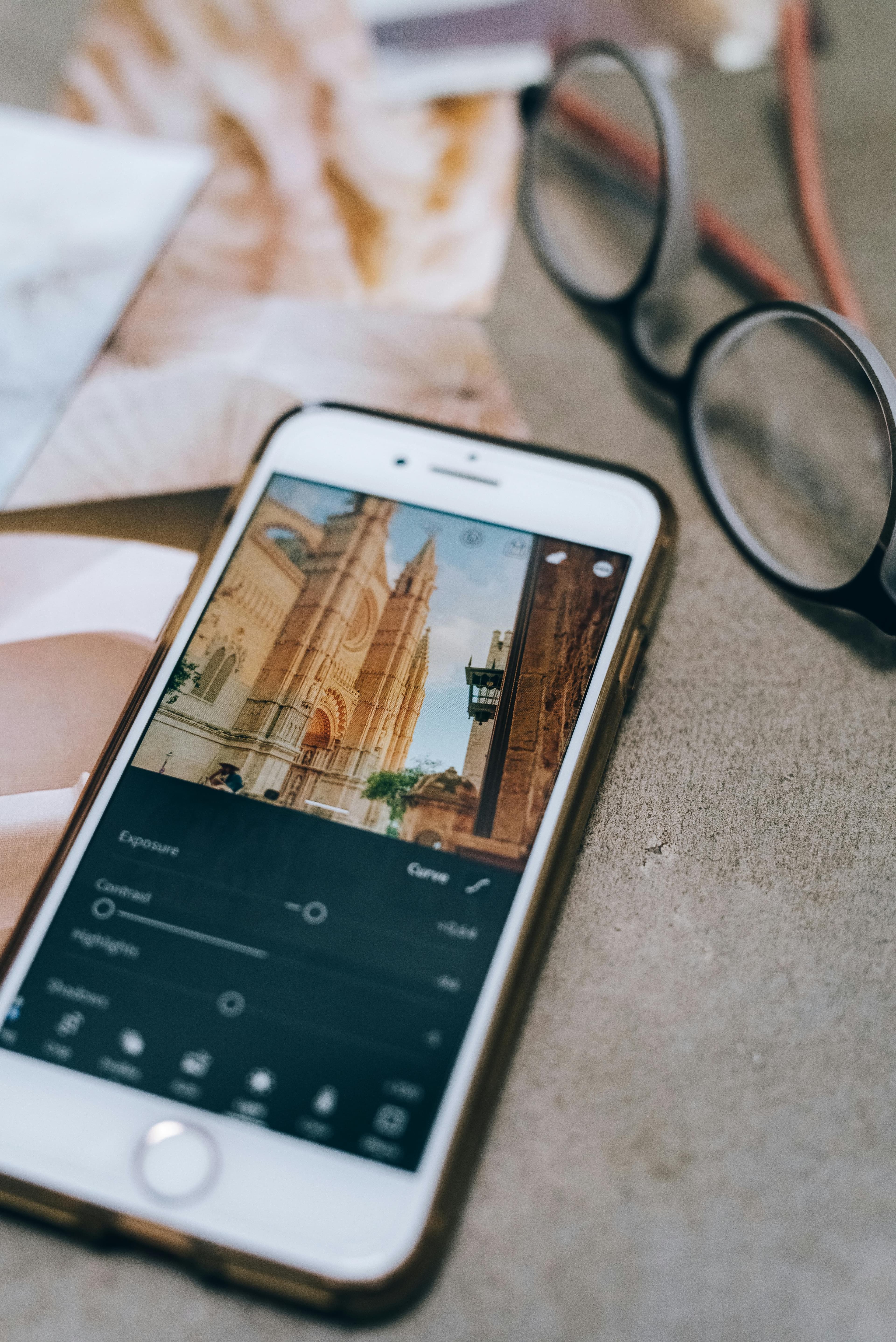
Want your phone photos to look like they were taken by a professional? With the right app and a few simple tricks, anyone can get amazing results, no expensive camera needed. In this guide, I’ll show you how to edit photos like a pro using Lightroom Mobile, a free and incredibly powerful app available for both iPhone and Android. If you want my personal presets to speed up your editing workflow, just email me at hi@egeuysal.com and I’ll send them to you for free!
Why Lightroom Mobile is a Game-Changer
Lightroom Mobile is one of the most popular apps among photographers of all levels. Here’s why it stands out:
- Free Version is Powerful. The free version gives you most of the editing tools you need, from exposure adjustments to color grading.
- User-Friendly Interface. It’s easy for beginners but also packed with advanced options for pros.
- Cross-Platform. Works on both iPhone and Android, so anyone can use it.
Whether you’re editing photos for social media, personal projects, or just for fun, Lightroom gives you the control to make your images look professional.

Learn the Settings First
Before you start editing, it’s important to get familiar with Lightroom’s key tools:
- Exposure & Contrast. Brighten or darken your image and make your subject stand out.
- White Balance & Temperature. Adjust colors to look natural or give your photo a specific mood.
- Saturation & Vibrance. Make colors pop without looking fake.
- Crop & Straighten. Improve your composition and remove distractions from the edges.
- Sharpening & Noise Reduction. Add clarity and smooth out any graininess.
Taking the time to learn these settings will make your edits faster and your photos more consistent.
Editing Workflow (Step-by-Step)
Here’s a simple workflow I follow to edit photos like a pro:
- Start with Exposure & Contrast. Adjust brightness and shadows for a balanced look.
- Fix White Balance. Make colors accurate or create a mood with warmth or coolness.
- Enhance Colors. Tweak saturation and vibrance to make the photo lively.
- Crop or Straighten. Perfect your composition and make your subject stand out.
- Sharpen & Reduce Noise. Add clarity and remove any grainy spots.
- Optional Preset. Apply a preset to save time and get a consistent style.
Presets & Style Tips
Presets are a fantastic way to save time and create a consistent look across your photos. Feel free to experiment with your own style, whether that’s minimalist, vibrant, moody, or bright and airy.
If you want, I’m giving away my Lightroom Mobile presets for free. They’re designed to make your photos pop instantly. Just email me at hi@egeuysal.com to get them.
Conclusion
Editing photos like a pro doesn’t have to be complicated or expensive. With Lightroom Mobile, a little practice, and a workflow that works for you, anyone can turn their phone shots into stunning images. Try out the tools, play around with styles, and don’t forget to reach out for free presets to make your editing even faster and more consistent.